
Android TPMS for USB Car Head Units
Display real-time tire pressure and temperature on compatible aftermarket Android navigation screens. The system combines a 433.92 MHz USB receiver, a dedicated APK, and four internal or external sensors.
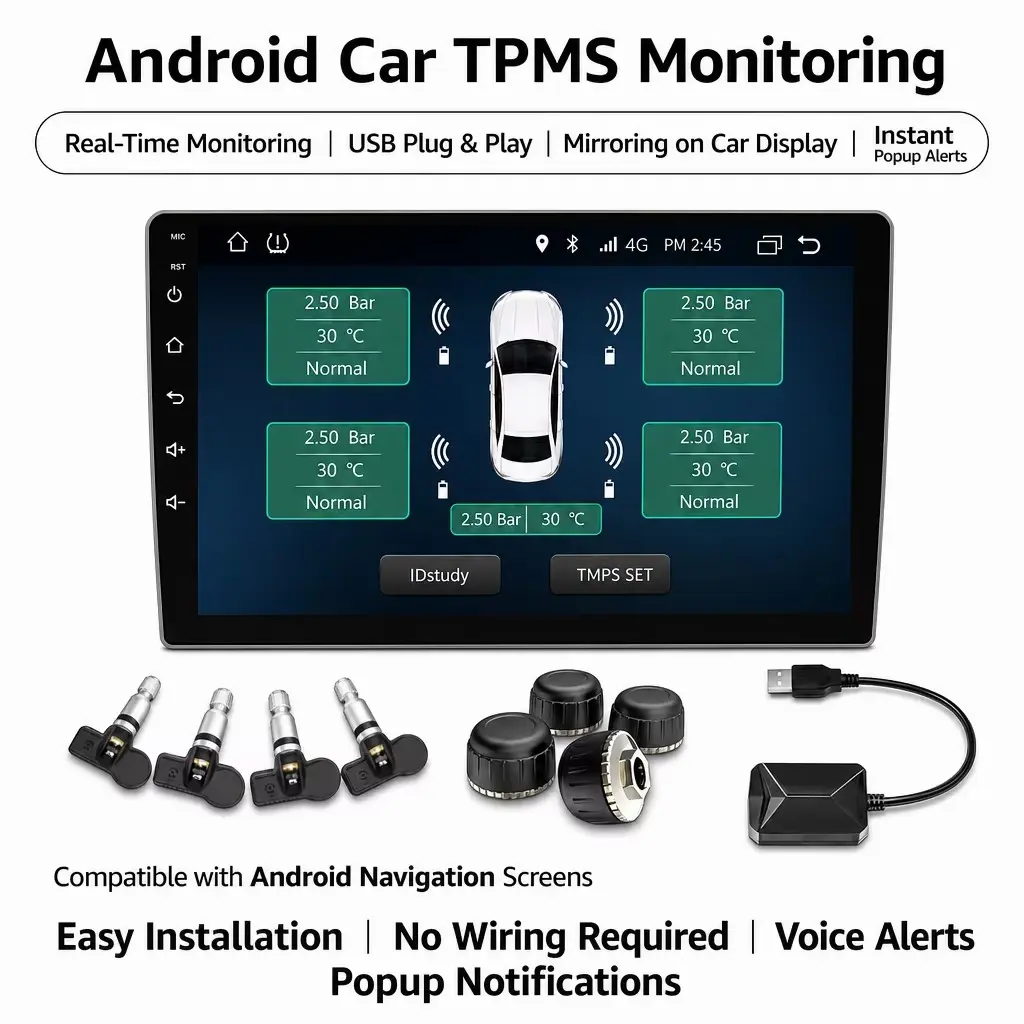
Real-Time Tire Data on an Android Navigation Screen
Arvov Android TPMS is designed specifically for aftermarket Android DVD head units, large-screen car stereos, and navigation systems. The dedicated APK displays the pressure and temperature of all four tires and provides high-pressure, low-pressure, high-temperature, and leak alerts.
01
USB Plug & Play Receiver
The USB HID receiver collects 433.92 MHz RF signals from the tire sensors and transfers the data to the Android head unit.
02
Dedicated Arvov APK
The companion APK displays four-wheel tire pressure and temperature data directly on the compatible head-unit screen.
03
Popup Safety Alerts
Receive floating popup warnings for abnormal pressure, high temperature, and tire leakage while using the head unit.
04
Internal or External Sensors
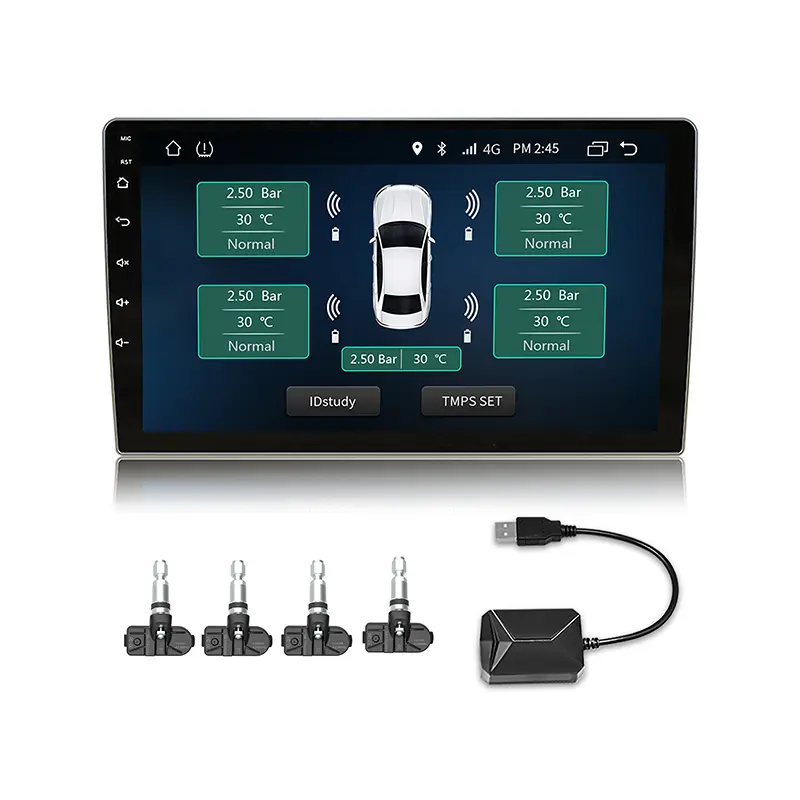
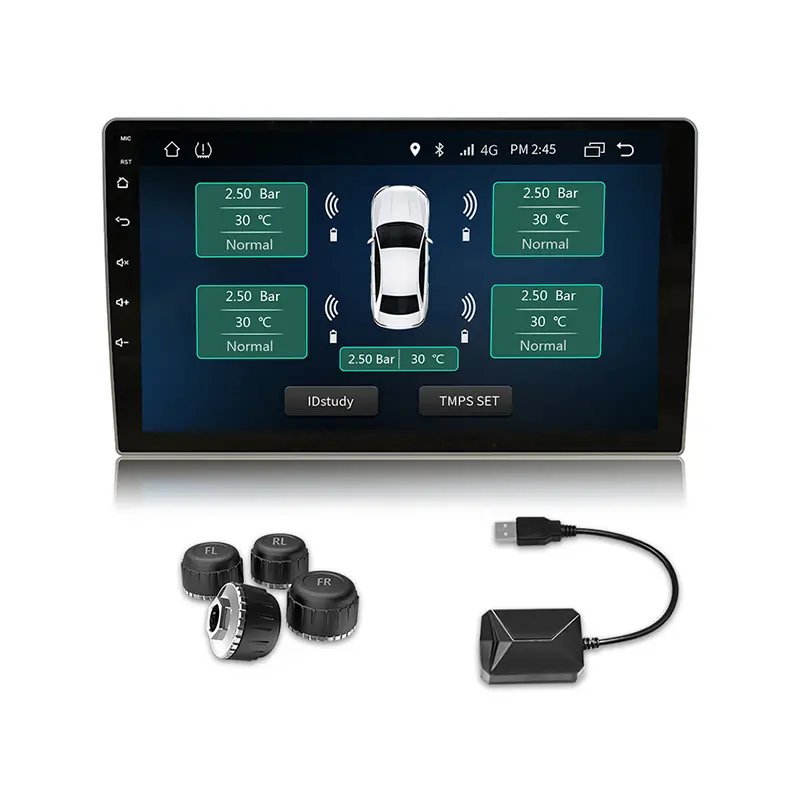
Choose in-wheel internal valve sensors or convenient external valve-stem cap sensors for four tires.
05
0–8 Bar Measurement
Monitor passenger-car tire pressure across a 0–8 bar (0–116 PSI) range with bar and PSI display options.
06
IP67 Sensor Protection
IP67-rated tire sensors support reliable operation in demanding road and weather conditions.
From Tire Sensor to Android Head Unit
The system uses a dedicated USB hardware path rather than Bluetooth communication.
1
433 MHz Sensor Signal
Each tire sensor measures pressure and temperature and transmits the data at 433.92 MHz.
2
USB Receiver Transfer
The receiver collects the RF packets and sends them to the Android navigation unit through USB HID.
3
APK Display & Alerts
The dedicated Arvov APK parses the sensor data, displays each wheel position, and shows alert notifications.
Choose Internal or External TPMS Sensors
Both configurations work with the USB receiver and dedicated Android head-unit APK.
Android USB TPMS Specifications
| Parameter | Specification |
|---|---|
| System Compatibility | Aftermarket Android head units / navigation screens |
| Data Interface | USB HID receiver |
| Radio Frequency | 433.92 MHz ±30 kHz |
| RF Modulation | ASK |
| Low-Frequency Reception | 125 kHz ±5 kHz, ASK demodulation |
| Sensor Options | Internal valve sensor / external cap sensor |
| Battery | Internal: CR2032, 220 mAh External: CR1632, 135 mAh |
| Standby Current | <0.7 μA |
| Emission Current | <10 mA |
| Transmission Power | <8 dBm (50 Ω) |
| Pressure Range | 0–8 bar (0–116 PSI) |
| Pressure Resolution | 1.572 kPa |
| Pressure Accuracy | ±0.1 bar at 0°C to 50°C ±0.24 bar at −30°C to 60°C |
| Temperature Range | −20°C to 85°C |
| Temperature Resolution | 1°C |
| Temperature Accuracy | ±4°C at −20°C to 50°C |
| Operating Temperature | −20°C to 125°C |
| Storage Temperature | −20°C to 85°C; room-temperature storage recommended |
| Protection Rating | IP67 |
| Battery Service Life | Internal sensor: 3–5 years External sensor: 1–2 years |
| Sensor Weight | Internal: 30 g External: 10 g |
Specifications are based on the supplied product document. Actual battery life varies with operating conditions, temperature, and transmission activity.
Set Up Android TPMS in Five Steps
Follow the installation order carefully to help the head unit recognize the USB receiver and APK correctly.
1
Install the APK First
Copy the Arvov TPMS APK to a USB flash drive, enable installation from unknown sources, install the APK, and tap “Done” rather than opening it immediately.
2
Connect the USB Receiver
Plug the USB TPMS receiver into the head unit, preferably through a rear USB port, and allow all USB device permission prompts.
3
Open the TPMS APK
Launch the dedicated application after the receiver has been connected and recognized by the Android head unit.
4
Install the Sensors
Screw external sensors onto the valve stems or install internal sensors with a tire changer followed by wheel balancing.
5
Pair and Configure
Learn the factory-pre-paired sensors if required, set the high and low pressure thresholds, and choose bar or PSI units.
✓
Recommended Android Versions
Android 7.1, 8.1, 9, 10, and 11 are identified in the product document as the most stable system versions.
Android TPMS FAQ
Can this USB TPMS work with a regular Android phone?
No. The system is designed for compatible aftermarket Android head units and navigation screens. Standard Android phones generally do not support this USB HID receiver.
Is this an Android Bluetooth TPMS?
No. The tire sensors transmit at 433.92 MHz to a dedicated USB receiver. The receiver sends data to the head unit through USB HID.
Can I use a generic TPMS app?
No. The USB receiver must be used with the manufacturer-provided Arvov APK. Generic TPMS apps cannot read data from this USB dongle.
Which Android versions are recommended?
The supplied product document identifies Android 7.1, 8.1, 9, 10, and 11 as the most stable versions for compatible aftermarket head units.
Should I choose internal or external sensors?
External sensors are convenient to install without removing the tire. Internal valve sensors are protected inside the wheel but require tire dismounting and wheel balancing.
Which USB port should be used?
Use a rear USB port on the head unit when possible. Front USB extension cables may increase the risk of signal packet loss.
Compare more Arvov TPMS products or contact our team to confirm head-unit compatibility.
Need Android TPMS for Your Car Head Unit?
Send us the Android head-unit model, operating-system version, USB configuration, and preferred sensor type. Arvov will help confirm compatibility and recommend the right kit.